
3D Control App Overview
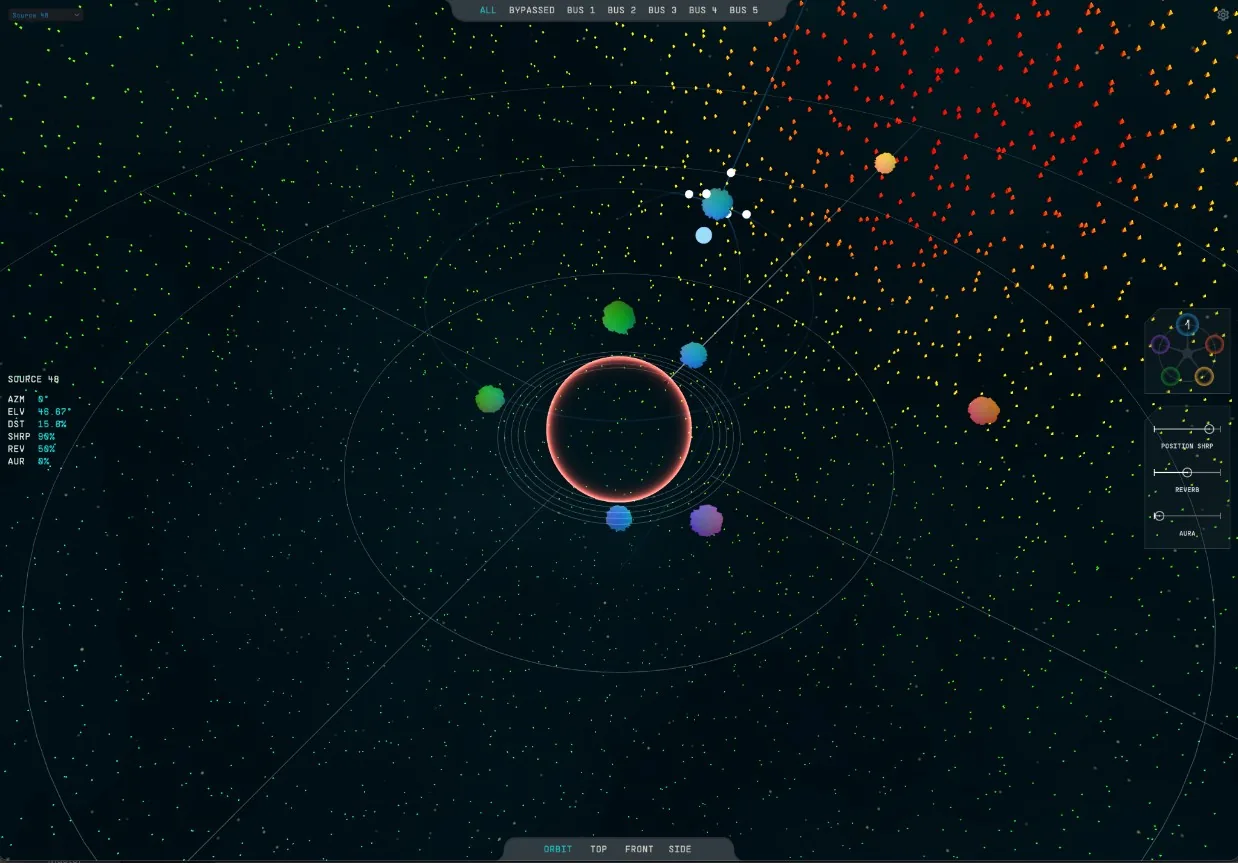
The 3D Control App allows for the visualization and control of the entire sound scene.
Sources are represented by coloured orbs or planets that take on the colour of their assigned reverb bus. When selecting each orb, most position and reverb controls will be available. Click on the white spheres around the orb that serve as guides to adjust Azimuth, Distance and Elevation and the controls on the right control the reverb adjustments.
18.1Top Panel
Displays a dedicated view of the sources sent to each of the 1-5 reverb buses. Additional controls for that specific Bus can be accessed here, such as: Space Sends, Space Mix and Size.
18.2Bottom Panel
Changes the current view displayed.
- Orbit
- Allows for the display and rotation of the scene in any possible direction/plane. Use the right-click to click and rotate the view of the scene.
- Top, Front, Side
- Anchors one of the axes to facilitate the display of the sources in the other two axes.
18.3Bus Selector
Allows for the assignment of the selected source to one of the 5 available reverb buses. Shows only when a source is selected.
- None / Bypassed: Grey
- Bus 1: Blue
- Bus 2: Red
- Bus 3: Yellow
- Bus 4: Green
- Bus 5: Purple
18.4Source Information
Located on the left side, this panel shows only when a source is selected. It displays the values for the selected source: Azimuth, Elevation, Distance, Reverb send level, and Aura send level.
18.5Source / Bus Selector
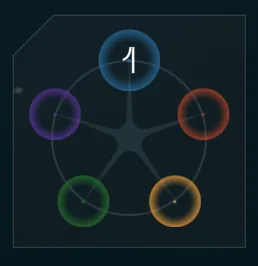
Located on the right side, and shows only when a source is selected. It allows the user to assign the chosen source to one of the five buses or disable the bus entirely. The Bus selector shows the five colours for the Buses (blue, red, yellow, green, purple) and a middle grey circle to bypass the buses entirely.
18.6Reverb and Aura Sends, and Sharpness Controls
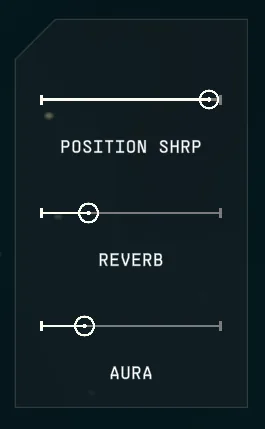
Located on the right side, below the Source/Bus selector, it adjusts the level of Reverb and Aura sends from the selected source to the assigned bus, as well as the Source Sharpness. You can input values directly into these fields by double-clicking on the titles, and typing a number from 0-100%.
This will only be shown when a source is selected.
18.7Settings
- Space Background
- Turn on and off the space overlay (stars and dust). This can be helpful to reduce the overall processing load.
- Post Processing
- Affects the visual performance overall. Turning it on adds shimmer and visual effects but takes more resources.
- Enable Compass
- Adds a compass reference/axis to better visualize the spatial scene.
- Center Shape
- Switches the central reference figure from a sphere to a head.
- Enable Heatmap
- Turns on and off the 3D heatmap. This can help to reduce overall processing load.
- Heatmap Resolution
- Adjusts the number of points displayed in the heatmap. When higher resolution is selected, it uses more processing and also affects launch time. When changing this setting, the 3D Control App will freeze for a short time (for a few seconds).
- Min: 1,000 particles
- Low: 5,000 particles
- Med: 10,000 particles
- High: 20,000 particles
- Max: 50,000 particles
- Heatmap Scaling
- Adjusts the visual sensitivity of the heatmap display relative to Living Sky's output level. Increasing or decreasing this value changes how output energy is represented visually, making the heatmap easier to read when the signal is very quiet or very loud.
- Heatmap Spherical Randomization
- Adds randomization to the position of the heatmap particles, adjusted to your taste. It'll appear more symmetrical when the setting is off.
- Always view modulation
- Shows modulation objects and trails permanently. When the toggle is set to off, the source will still display a tail, and the modulation object will only be visible for a selected source. When the toggle is set to on, the modulation objects will display the modulation tail and movement.
- Trail length
- Adjust the duration of the trails resulting from the modulation assignment to be visible for longer. Goes from 0 seconds (no trail at all) to 20 seconds (the longest tail length).
- Link Selection
- Shared setting between the plug-in and the 3D Control App. When selecting a source and reverb bus in the 3D Control App, it will also be selected in the plug-in and vice versa. This way, you can move seamlessly between both. If you click on Source 15 in the 3D Control App, when going into the plug-in, Source 15 will be selected, and you will instantly be able to adjust its settings.
- Meter Speed
- Adjust the display meter speed from Slow to Fast (integrated or peak).
- OSC Information
- Displays the details for each of the following settings. When double-clicked, they can be adjusted.
- OSC Remote Host: Default is 127.0.0.1 (the current machine's IP address). This corresponds to the IP address of the target machine.
- OSC Transmitter Port: Default is 7054. The default port of the plug-in is 7055. You can change this if you have another application already using this port. This must match the receiver port of the plug-in on the target machine, otherwise communication will not work.
- OSC Receiver Port: Default is 7055. The default in the target machine is 7054. This must match the transmitter port of the plug-in on the target machine, otherwise communication will not work.