
Snapshot, Scene, and Space
From macro to micro, we designed Snapshots, Scenes, and Spaces to refer to different parts of the engine that you might want to use, save, and recall separately.
12.1Snapshots and the Snapshot Browser
A Snapshot is a saved state of the entire plug-in instance. The saved parameters include:
- Sources
- Names, input gain (volume), mute and solo states, envelope gain and assignment, Bus Selector, Source Position (Distance, Elevation, Azimuth), Reverb Send, Aura Send, Aura Drift, and Flux.
- Bus
- Bus on/off states, loaded Scenes, Space settings, Space assignment, Size, Bus Rotation, Space Sends and Mix, and Bus Volume.
- Modulation
- All modulation assignments, shapes, depth control, and DAW sync.
12.1.1 Accessing the Snapshot Browser
Click on the folder icon next to the Living Sky logo in the top section.

The Snapshot Browser will open, showing all available snapshots.

- "ATELIER" contains snapshots created by MNTRA.
- "USER" contains your own saved snapshots.
You can mark snapshots as a "Favourite" by clicking the star icon when they are loaded.
The window displays all associated information: Type, Tags, and Comments.
12.1.2 Loading, Changing, and Saving Snapshots
- Load: Double-click on the snapshot name in the Snapshot Browser.
- Change: Use the arrows next to the snapshot display field to cycle through snapshots, regardless of whether the Snapshot Browser is open.
- Save: Click on the save icon. You can name the snapshot, add comments, and use the + icon to add Tags. You can save a snapshot without opening the Snapshot Browser.
- Edit or Delete: Select a snapshot in the browser, then click the pencil (edit) or trash (delete) icon on the right.
12.2Scenes and the Scene Browser
A Scene is a saved state of a full bus. This includes the group of Spaces loaded in each of the three available slots in a single bus, along with its specific settings (Space, Size, EQ, EQ-link-to-size, and Size Range).
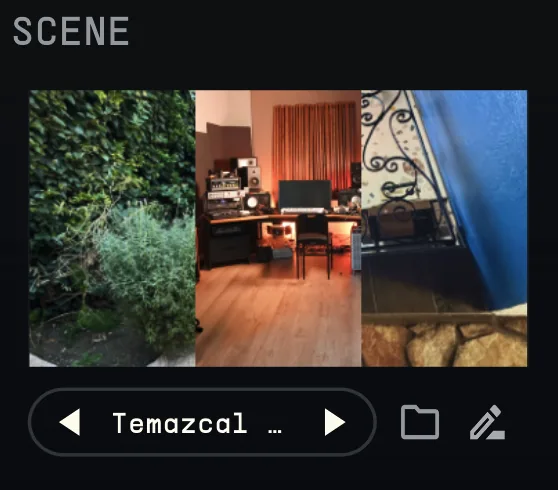
You can access the saved Scenes (either yours or factory default) through the Scene Browser. Click on the Scene thumbnail or the folder under it to open it. All of the factory created scenes can be filtered using the tag "ATELIER".
On the Scene Browser you will find some factory scenes with specific tags that will help on loading specific settings easily:
- Single — Loads one single space into the first slot of the Bus in the Scene Editor without having to open the Space Browser.
- Multimic — Loads two spaces in the first two slots of the Bus in the Scene Editor. They both correspond to a capture in the same position of a venue, but made with a Spatial Mic Array in Slot 1, and a High-order Ambisonics microphone in Slot 2. This can allow you to combine a timbrally full capture with a spatially accurate one that is detailed in all directions. They can be mixed, triggered and equalized separately.
- Field — Loads two or three spaces in the Bus, combining captures that describe one venue in three different positions. The spaces are loaded in order of distance to source, with Slot 1 being the closest position to the source, and the last one being the farthest. This allows you to mix three different perspectives of the same venue, and they can be modulated, triggered, and equalized separately.
- Hybrid Scenes — These are our creative scenes! They have been carefully crafted and load two or three spaces in the selected Bus, that include combinations of different spaces, venues, and capturing methods, creating a unique reverb. Hybrid scenes can be heavily equalized, and grouped under a theme (i.e. small rooms, large performance spaces, etc.).
12.3Spaces and the Space Browser
A Space is the most granular unit, representing one of the three individual Impulse Response (IR) slots available within a Scene for a single bus. It is the core acoustic environment element that is loaded and edited.
The Space Browser is the section of the plug-in to access the full list of available Spaces. It can be accessed by going into the Scene editor and clicking on the Space slot to be changed.
To do this:
Click on the Edit (pencil button) right under the Scene Thumbnail display in the Bus row. This opens the Scene Editor.
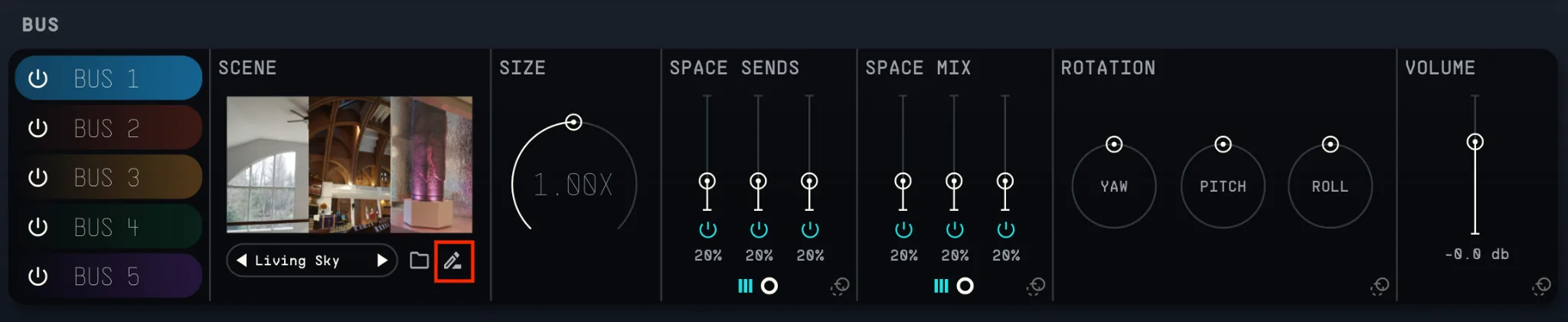
Once there, click on the thumbnail or folder icon beneath the Space Slot to change it.