

Settings
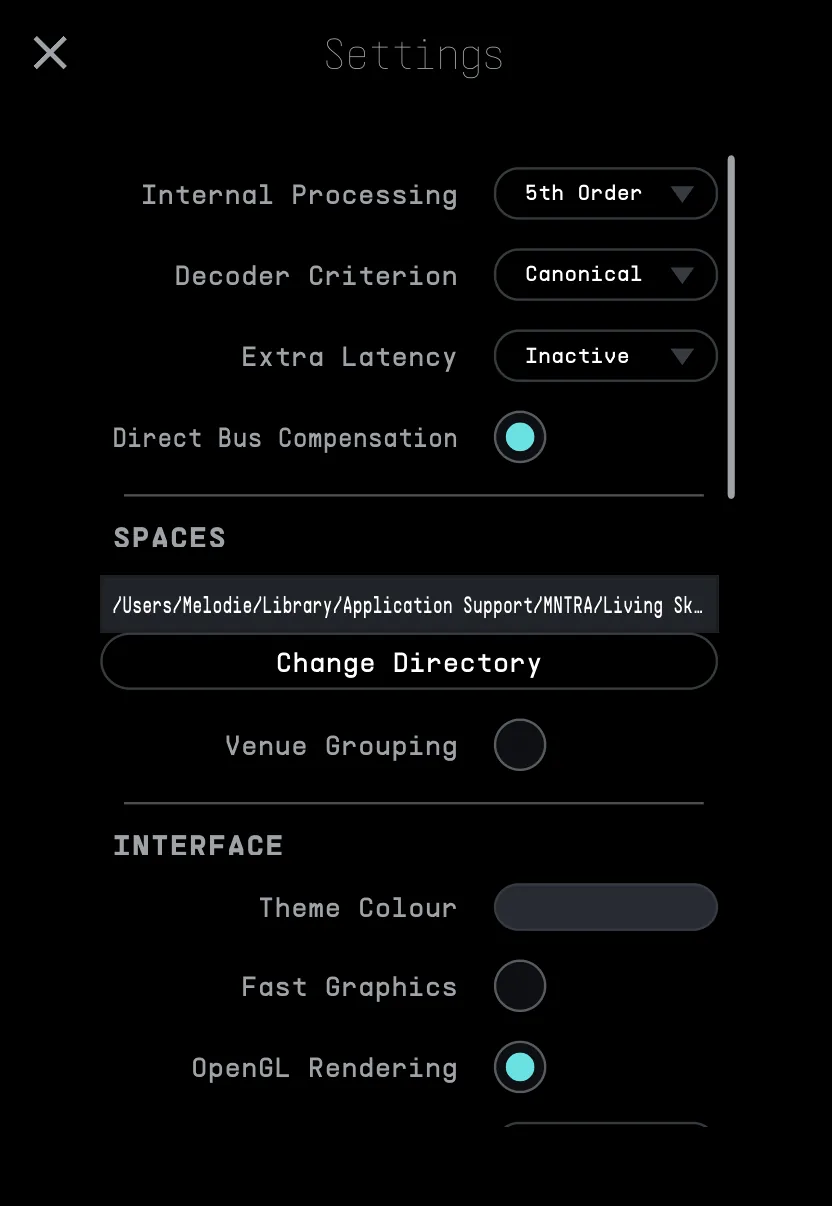
- Internal Processing
Selects the maximum ambisonic order that Living Sky can operate at. Spaces beyond the maximum order will still work, but with less spatial resolution.
- Decoder Criterion
These options allow selection of the ideal normalization standard for the target use case.
- Canonical (SN3D/N3D): Most standard normalization, and mathematically proposed to keep the faithfulness to spherical harmonics theory. This means that for higher orders (i.e. 4th, 5th order) the changes in level and the directivity will be more salient.
- MaxNorm (Max-N): Prevents the extreme salience of peaks and directivity, making the overall experience and combination of different sources less dynamic. Levels will be kept more consistently when changing orders, for example, when going from 5th-order to 3rd-order.
- InPhase: Focused on speaker reproduction, it takes into account the decoding of the ambisonics signal to a speaker set up to ensure that the signal fed to each speaker will result in constructive interference or summation. Preventing, for example, that speakers that are facing each other, like sides in a 7.1 channel setup, are outputting with inverse polarity. This normalization has a less crisp directivity, but favours a bigger listening area and consistency overall.
- Extra Latency
Adds an additional latency to the onset of the reverb tail. This setting is ideal for less powerful systems that can benefit from having the reverb convolution starting a bit later to ease the load on the processor. Adjust this setting if performance issues are happening in the system. If, for example, 1024 is selected, the reverb will start DAW Session buffer size + 1024 samples after playback.
- Direct Bus Compensation
Applies the Extra latency (defined above) to the Direct Bus (non-reverberated, but spatialized output path). This will help with performance in high load sessions when On, but will be best kept Off on situations where less latency is important, like recording or live mixing.
- Spaces
- Spaces Folder Location: Specifies where Living Sky will look for the Spaces's files. Click the file readout to open the folder location.
- Venue Grouping: Toggles if Spaces are visually grouped according to their venue in the space browser view.
- Interface
- Theme Colour: Opens up a colour picker to determine Living Sky's background colour. Double click to Reset Colour to its default setting.
- Fast Graphics: Sets if Living Sky will utilize alternative, computationally cheaper drawing methods. Activate this setting if you are experiencing performance issues.
- OpenGL Rendering: This setting may help with dropouts on certain DAWs. Turning this off disables the 2D heatmap.
- Meter Speed: Configure the speed at which various meters (heatmap & I/O meters) will visually decay.
- Scene Thumbnails Fallback: Changes how Scene thumbnails are displayed when no specific image has been saved for them. Select Single to show only the image for the loaded Space 1, Composite to show a combined image of the loaded Spaces 1, 2, and 3, or Blank to show no image.
- 3D Control App / Visual Engine
- Application Location: The default location of the 3D Control App is:
Mac: [Main Drive]/Users/[YourUser]/Library/Application Support/MNTRA/Living Sky/3DControlAppWindows: C:\Users\[YourUser]\AppData\Roaming\MNTRA\Living Sky\3DControlApp
If you want to adjust it, this setting allows the setting of the location of the 3D Control App. Click the file readout to open the currently set folder location. - Link Without Launching: Toggles if the '3D Control App' will try to launch the 3D Control App before linking.
- Link Selection: Toggles whether the currently selected source and bus are sent to the 3D Control App.
- Application Location: The default location of the 3D Control App is:
- Reporting
Enable this to allow Living Sky to send anonymous error and performance reports to MNTRA. These reports help improve the stability and performance of the plugin. No personal data is collected.
- Testing
Channel Config Test: Plays audio through each of the outputs in order of their corresponding number. This is a tool to help users with their studio routing, making sure that their output channels correspond to their physical studio configurations.
- Tutorials
All in-plugin tutorials can be accessed through this menu. Tutorials will take the user to the specific areas of the engine, showing their functionality, tips and tricks, and integration with the rest of the plug-in. Watched tutorials will show a checkmark on the right side of the button, but can be triggered again anytime.
- Deactivation
Logout this machine: Logs your user account out on the current computer. You will be returned to the main login window and must log in again before continuing to use the plug-in. This is useful if you want to move one of your three authorized licenses to a new computer, fully format your current computer, or temporarily use Living Sky outside your studio without leaving the license authorized on that machine. Note that you can access a "Deactivate" function in your MNTRA account directly to Logout of ALL authorized machines.